iPhone Battery Draining Fast? You’re Not Alone
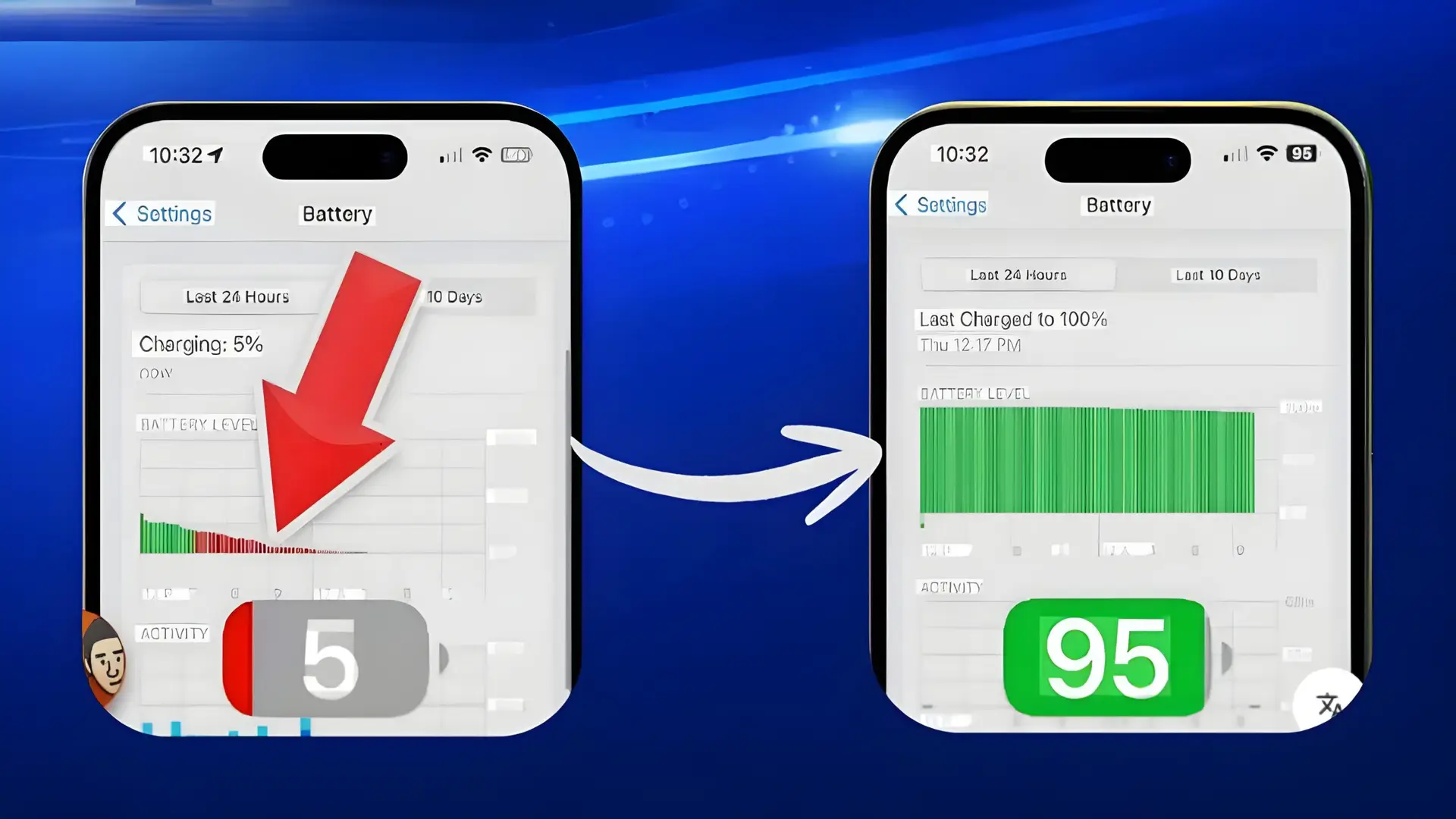
If your iPhone battery is draining faster than usual, you’re definitely not alone. Many iPhone users complain that their battery drops from 100% to 20% within a few hours — even without heavy usage.
The good news?
In most cases, battery drain is caused by settings, apps, or background activity, not a faulty battery.
In this guide, I’ll show you 17 real, tested solutions that actually help improve iPhone battery life — even on older models.
Let’s fix it step by step.
1. Check Battery Health First (Very Important)
Before changing anything, check your battery condition.
How to check:
- Go to Settings → Battery → Battery Health & Charging
- Look at Maximum Capacity
What it means:
- 90–100% → Battery is healthy
- 80–89% → Normal but noticeable drain
- Below 80% → Battery replacement recommended
👉 If your battery health is below 80%, no software fix will fully solve the issue.
2. Turn Off Background App Refresh
Background app refresh is one of the biggest battery killers.
Fix:
- Settings → General → Background App Refresh
- Select Wi-Fi or Off
For better results:
3. Disable Location Services for Unnecessary Apps
Many apps track your location constantly.
What to do:
- Settings → Privacy & Security → Location Services
- Open each app
- Set to “While Using the App”
Avoid:
❌ Always Allow (unless required like Maps)
4. Reduce Screen Brightness (Huge Impact)
Your screen uses more power than anything else.
Best settings:
- Settings → Display & Brightness
- Enable Auto-Brightness
- Keep brightness under 70%
💡 Darker screen = longer battery life.
5. Turn On Low Power Mode
Low Power Mode is extremely effective.
Enable it:
- Settings → Battery → Low Power Mode
What it does:
- Reduces background activity
- Limits animations
- Improves standby time
👉 You can safely use it all day.
6. Check Battery Usage by Apps
Find the real culprit apps.
Steps:
- Settings → Battery
- Scroll to Battery Usage by App
If you see:
7. Disable Push Email (Switch to Fetch)
Push email constantly checks for new messages.
Fix:
- Settings → Mail → Accounts → Fetch New Data
- Turn Push OFF
- Set Fetch to Hourly
This alone can save 10–15% battery daily.
8. Turn Off Unnecessary Notifications
Every notification wakes your phone.
Fix:
- Settings → Notifications
- Turn OFF alerts for:
- Shopping apps
- Games
- Promo apps
Less notifications = less battery drain.
9. Update iOS (But Be Careful)
Old iOS versions may have bugs, but:
- New iOS updates sometimes cause temporary drain
Recommendation:
- Always update to stable version, not beta.
Settings → General → Software Update
10. Disable 5G If Not Needed
5G drains more battery than 4G.
Fix:
- Settings → Mobile Data → Mobile Data Options
- Voice & Data → Select 4G/LTE
You’ll barely notice speed difference but battery will last longer.
11. Turn Off Bluetooth & AirDrop When Not in Use
Bluetooth keeps searching for devices.
Fix:
- Turn off Bluetooth from Settings, not Control Center
- Set AirDrop to Receiving Off
12. Enable Optimized Battery Charging
This helps long-term battery health.
Steps:
- Settings → Battery → Battery Health & Charging
- Turn ON Optimized Battery Charging
It slows down battery aging.
13. Close Apps the Right Way (Myth Busted)
❌ Closing apps constantly can increase battery drain.
Correct way:
- Only close apps that are:
- Frozen
- Misbehaving
iOS manages background apps efficiently.
14. Reduce Motion & Animations
Animations look nice but consume power.
Fix:
- Settings → Accessibility → Motion
- Enable Reduce Motion
15. Use Dark Mode (Especially on OLED iPhones)
If you use iPhone X or newer:
Enable:
- Settings → Display & Brightness → Dark Mode
Dark pixels use less power on OLED screens.
16. Restart Your iPhone Once a Week
Simple but effective.
Restarting clears:
- Background glitches
- Stuck processes
- Memory leaks
17. Reset All Settings (Last Option)
⚠️ This will NOT delete data.
Steps:
- Settings → General → Transfer or Reset iPhone
- Reset → Reset All Settings
Use this if battery drain started suddenly.
When Should You Replace the Battery?
Replace battery if:
- Battery health < 80%
- Phone shuts down randomly
- Heats up during normal use
A new battery feels like a new phone.
❓ FAQs: iPhone Battery Draining Fast
Why is my iPhone battery draining so fast suddenly?
Sudden battery drain usually happens due to background app activity, recent iOS updates, location services running continuously, or poor network signals. Checking battery usage by apps can quickly identify the cause.
Does updating iOS cause battery drain?
Yes, temporarily. After an iOS update, your iPhone runs background processes like reindexing and app optimization, which can cause battery drain for 24–48 hours.
Why does my iPhone battery drain overnight?
Overnight battery drain is often caused by background app refresh, push email, Bluetooth, or poor Wi-Fi/mobile network signals. Turning on Low Power Mode before sleep can help.
Is Low Power Mode safe to use all the time?
Yes. Low Power Mode is completely safe for daily use. It reduces background activity and visual effects without harming your iPhone or battery health.
Does 5G drain iPhone battery faster?
Yes. 5G consumes more power than 4G LTE. Switching to LTE can significantly improve battery life without noticeable speed loss for most users.
What battery health percentage is bad for iPhone?
If battery health drops below 80%, Apple recommends replacing the battery. Below this level, battery drain and performance issues become noticeable.
Should I close apps to save battery on iPhone?
No. Constantly closing apps can actually increase battery usage. iOS efficiently manages background apps, so only close apps that freeze or misbehave.
How can I stop iPhone battery drain without replacing the battery?
You can reduce battery drain by disabling background app refresh, limiting location access, reducing screen brightness, turning off unnecessary notifications, and enabling Low Power Mode.
Final Thoughts
iPhone battery drain is usually fixable without spending money.
Start with:
✔ Battery Health
✔ Background App Refresh
✔ Location Services
Apply these fixes and you’ll notice improvement within 24 hours.